
tmux sessions that survive SSH drops
- devops
- linux
- terminal
SSH drops. The laptop sleeps. The VPN blinks. Without a multiplexer, a long deploy or a terraform apply dies with the terminal. tmux keeps the process alive on the remote host so you can reconnect and continue.
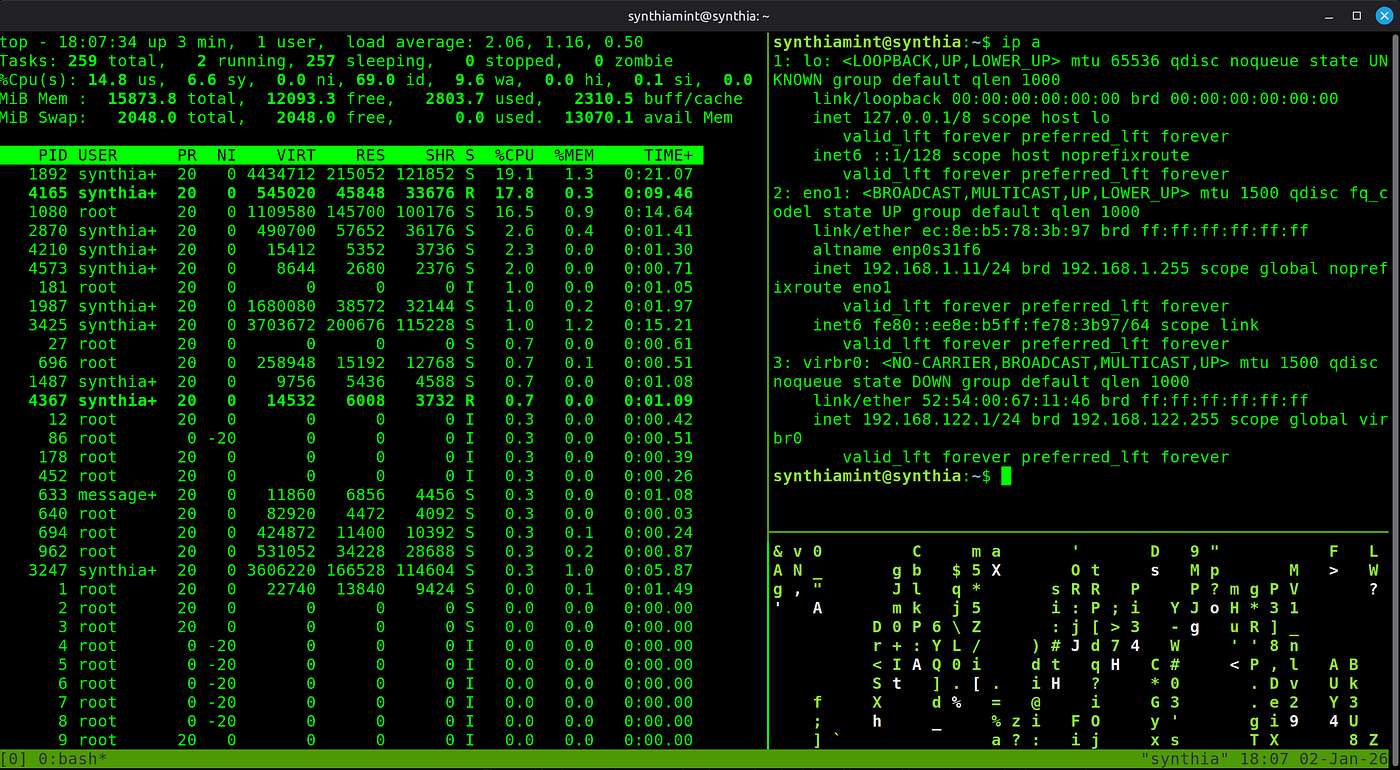
Why it matters in production work
On bastions and jump boxes you often need:
- one session for logs, one for apply, one for docs
- a layout you can reopen tomorrow
- no dependency on your laptop staying awake
tmux gives you named sessions, windows, and panes on the server side.
Minimal workflow
SSH into the host, then:
# start a named session
tmux new -s deploy

# later, from a new SSH connection
tmux attach -t deploy

# list what is running
tmux ls
Inside tmux, the prefix key is Ctrl-b (press it, release, then the command key):
| Keys | Action |
|---|---|
Ctrl-b d |
Detach (leave processes running) |
Ctrl-b c |
New window |
Ctrl-b n / p |
Next / previous window |
Ctrl-b % |
Split vertical |
Ctrl-b " |
Split horizontal |
Ctrl-b arrow |
Move between panes |
Detach before you close the laptop. Re-attach when you come back.
A layout that scales
A useful default for a change window:
- Window
0: editor or notes - Window
1: apply / script - Window
2:journalctl -for CloudWatch tail
tmux new -s change -d
tmux rename-window -t change:0 notes
tmux new-window -t change -n apply
tmux new-window -t change -n logs
tmux attach -t change
Guardrails
- Prefer named sessions (
deploy,incident-42) over anonymous ones. - Do not run secrets as shell history you will paste into a shared session without care.
- On shared bastions, agree on session names so you do not attach to someone else's work by mistake.
Takeaway
tmux is not a productivity toy. It is a small reliability layer between you and a flaky network. Create a named session, detach without fear, attach when the link returns.